Feature
Faithful Artwork Extension
Expand beyond the original square cover while preserving composition, palette, lighting, and visual rhythm.
Objects
Turn square album artwork into phone and desktop wallpapers. The main choice is whether to extend the cover faithfully into a larger canvas or place it into a more atmospheric environment-led background.
Collection
2 styles
Cost Range
2 credits
Plan
Creator
Best For
Track-first generation
Primary Action
Choose a wallpaper mode
Creator plan required to use this template. See pricing
Cover Wallpaper Collection
This page exists to help compare wallpaper behavior before generation starts. Some outputs are faithful extensions of the original sleeve, while others create a more scene-driven backdrop around the same artwork.
Why This Collection Works
Wallpaper workflows sit after the cover is already finished. The job here is not to redesign the square artwork but to translate it into lock-screen, desktop, and story-friendly compositions.
Feature
Expand beyond the original square cover while preserving composition, palette, lighting, and visual rhythm.
Feature
Switch to a scene-led preset when you want the cover to live inside a styled physical environment instead of pure outpainting.
Feature
Export for modern phones and common desktop screens with mobile-first and widescreen aspect ratios.
How It Works
Step 1
Use the collection page to decide whether the wallpaper should stay close to the original sleeve or move into a more immersive backdrop treatment.
Step 2
Mobile lockscreens, story backgrounds, and desktop wallpapers want different framing. Lock the target ratio before you enter Studio so the composition stays intentional.
Step 3
Open the exact Studio route only after the cover, style behavior, and canvas target are clear. That turns Studio into an output step rather than a discovery step.
Styles
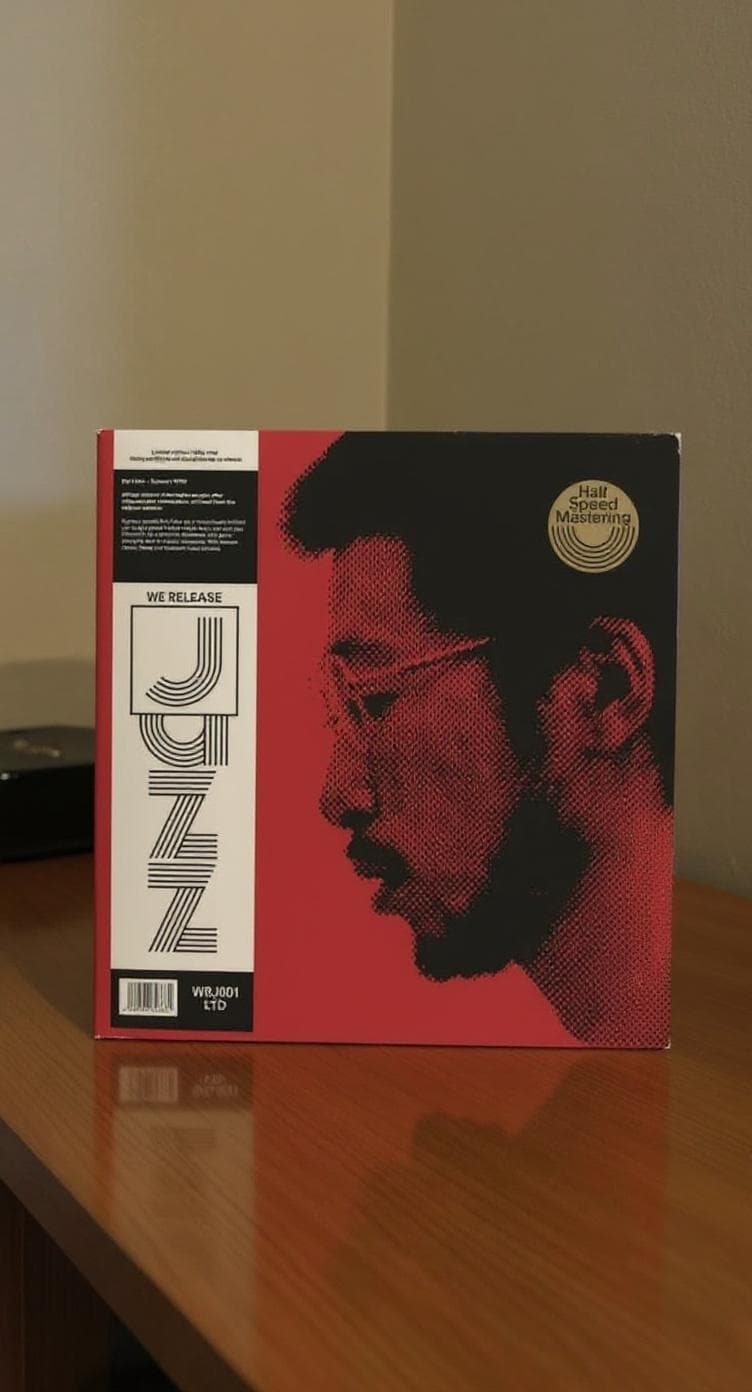
Infinite Extension keeps the cover language close to the original art, while Vibe Backdrop pushes the cover into a stronger scene-led environment. Compare the pages before choosing the Studio route.
2 options

Style Page
Expand the original cover into a wallpaper while preserving its visual language and composition.
Style Page
Place the cover inside a styled environment with depth, surfaces, and atmosphere.
Use Cases
Use these templates when the cover already exists and the next job is a wallpaper, lock screen, desktop background, or ambient promo backdrop built from that same artwork.
Preview Gallery
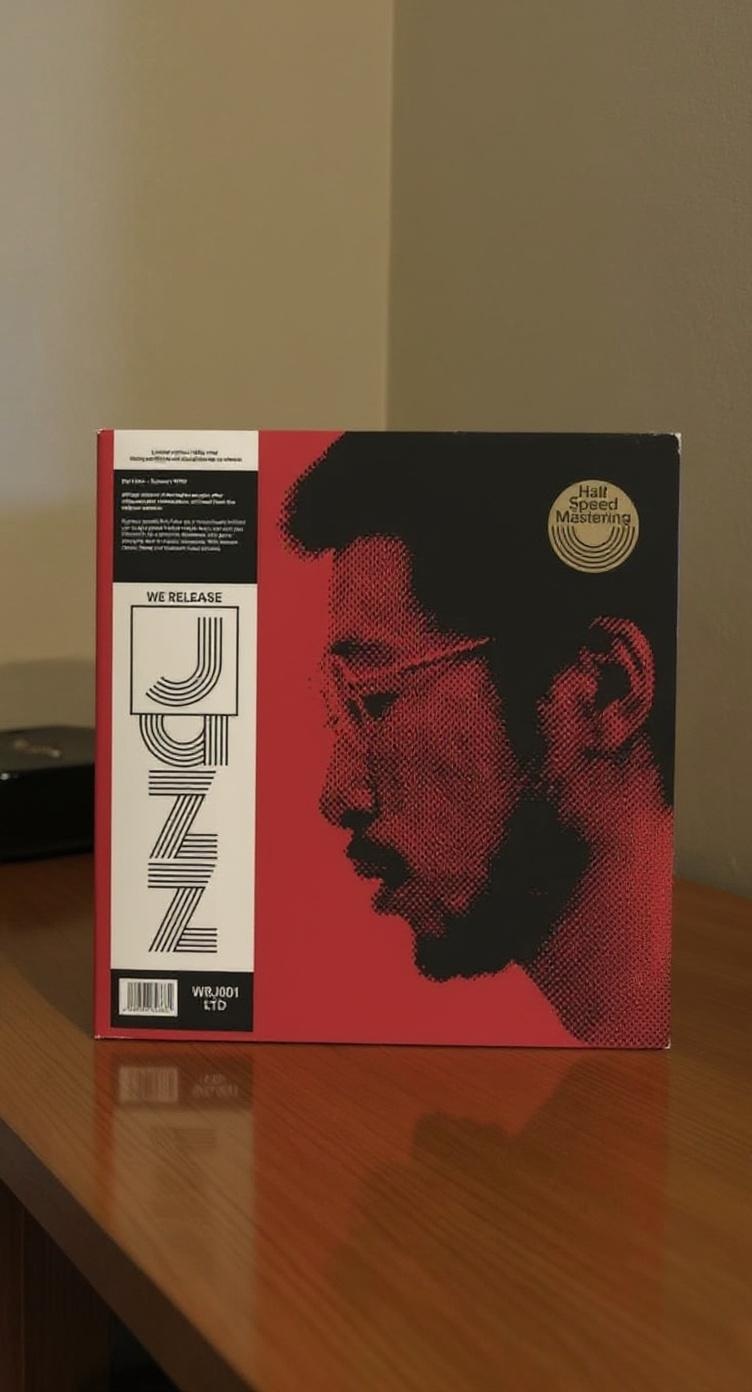
The gallery helps separate exact cover extension from more atmospheric expansion so the wallpaper intent is clear before generation.
Examples

FAQ
A clear square album cover works best. The model uses the cover as the anchor and extends or stages everything around it.
Infinite Extension is the default and best for faithful artwork expansion. Scene Preset builds a styled environment around the cover, so it is more opinionated and less literal.
We support 9:19.5, 9:16, 3:4, 16:10, and 16:9 for phone and desktop wallpapers.